Overview#
Due to our small team size and rapid iteration time, it was imperative we spent the least amount of time creating and organizing Assets in mass as we were building our Levels. To support this, I integrated creating gameplay systems with Slate tools and editors as part of my regular workflow to expedite the process of asset creation and setup. This was exemplified throughout the project but I will highlight bigger editors and tools below.
Relationship Editor#
One of the most utilized editors I created for Project Burbank is the Relationship Editor and related tools. The need for this editor arose when we were building out the Relationship Map, and it became hard to keep track of how the various Relationships were able to progress. We needed a way for our designers to visualize how each Stage of the Relationship Map was able to evolve and easily compare the effects and constraints of them all.
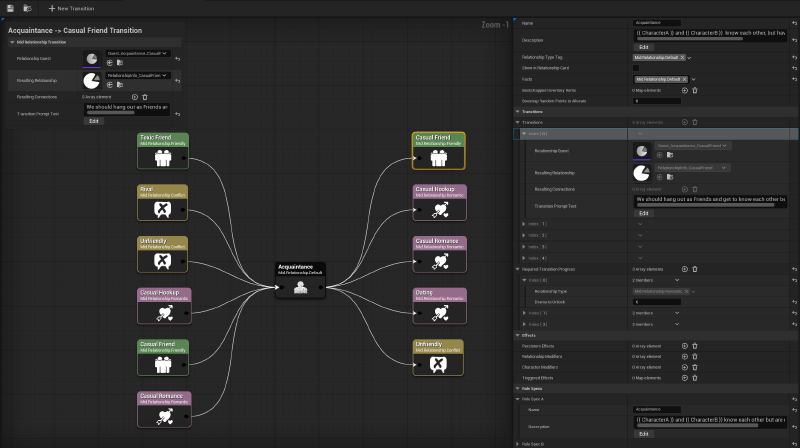
This custom Asset Editor shows a graph visualizing the Relationship Stages that can be progressed to from the Relationship Asset being viewed currently. I based it off of the Reference Viewer built into UE, and utilized custom EdGraph and EdGraphNode classes to build the progression Map. The editor also includes custom tools to walk designers through setting up complex Properties and a Context Panel that appears to help focus the information shown at once.
Relationship Graph#
I created the Graph to replace the experience of editing a static Details panel, and since each field on the Relationship Data Assets required heavy setup and often depended on other Properties or Assets, there were many places to implement custom flows to create a seamless experience as we built the Map. Interacting with the Graph would implicitly prompt designers to edit corresponding settings on the Relationship, and the Graph highlights relevant nodes, Properties, or errors in response. This editor helped us visualize and rapidly test different variations of Relationships and progression settings by making it simple to edit. The modular design of the Relationship system also supported this notion, and allowed us to create complex and engaging moments for our Players via these Relationships.
System Design
I utilized a View Model-driven approach, where the View Model serves as the central hub for all systematic logic connecting the Slate widget with game code and runtime data. The View Model acts as a mediator to ensure that the editor’s UI remains in sync with the game state while also managing communication with broader game systems and event handling.
With this setup:
SRelationshipEditor::Construct(const FArguments& InArgs, TSharedPtr<FRelationshipEditorViewModel> InViewModel)
{
  GraphObj = NewObject<UEdGraph_RelationshipEditor>();
  GraphObj->AddToRoot();
  RelationshipEditorViewModel = InViewModel;
  ...
  GraphObj->ConstructGraph(InViewModel);

  // Create the Graph Editor
  GraphEditorPtr = SNew(SGraphEditor)
  	.GraphToEdit(GraphObj);
  ...
  // Add all other widgets
}

UEdGraph_RelationshipEditor::ConstructGraph()
{
  // Use ViewModel information to determine which node is focused/should be centered
  UEdGraphNode_Relationship* CenterNode = SpawnNode(ViewModel, FVector2D(0.0f, 0.0f));
  ...
  // Create graph
  ...
  ViewModel->GraphEditor = this;
}
It was then possible to retrieve the View Model from any relevant editor context to trigger or access data, like so:
SRelationshipNode::OnMouseButtonDown(const FGeometry& Geometry, const FPointerEvent& MouseEvent)
{
  UEdGraph_RelationshipEditor* Graph = GetGraph();

  // If Graph and all relevant data is valid
  Graph->GetEditorViewModel()->HandleNodeSelected(GetNode());
}
Using a ViewModel to manage the connection between the editor’s Slate UI and game data cleanly decouples the UI from game logic. This modularity makes it easy for us to continue to iterate on the underlying Relationship system without worrying about maintaining the editor, since new features can be added without disrupting any other functionality.
Relationship Editor Tools#
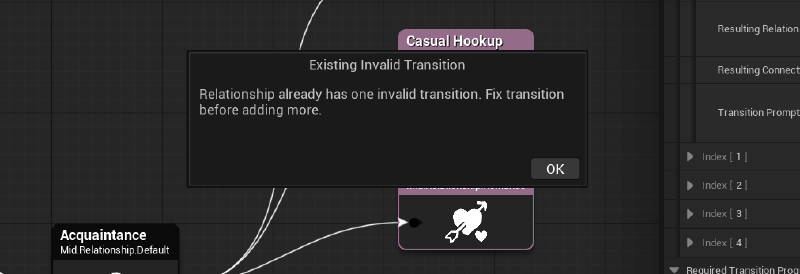
I wanted it to be as easy as possible for designers to interact with and edit Relationships via the graph, so I also included tools within the editor to walk designers through setting up more complex Properties, like adding new Stages to progress to. Because this system was so complex as well, it was easy to create duplicates, forget to assign data to Properties, or make various other mistakes. This tool was also responsible for throwing errors should any information be inputted wrong to further expedite updating the Map.
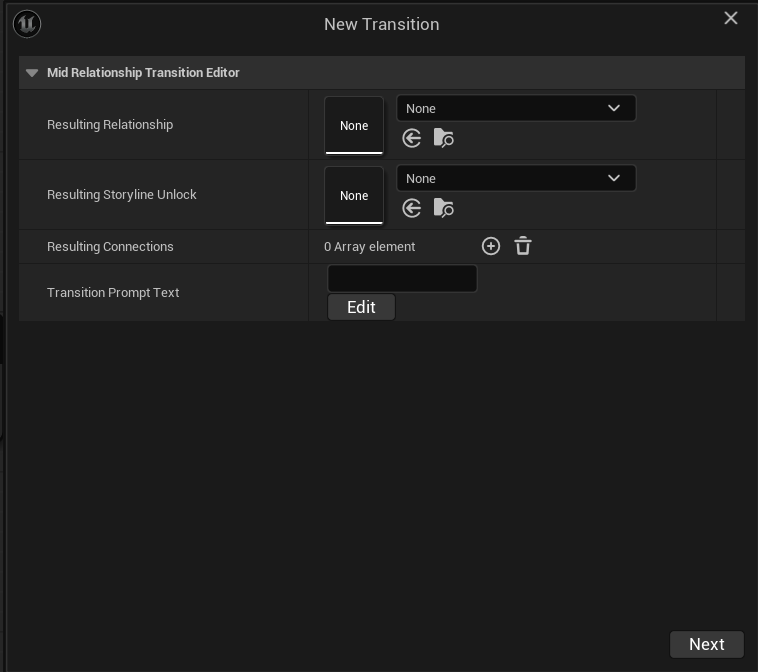
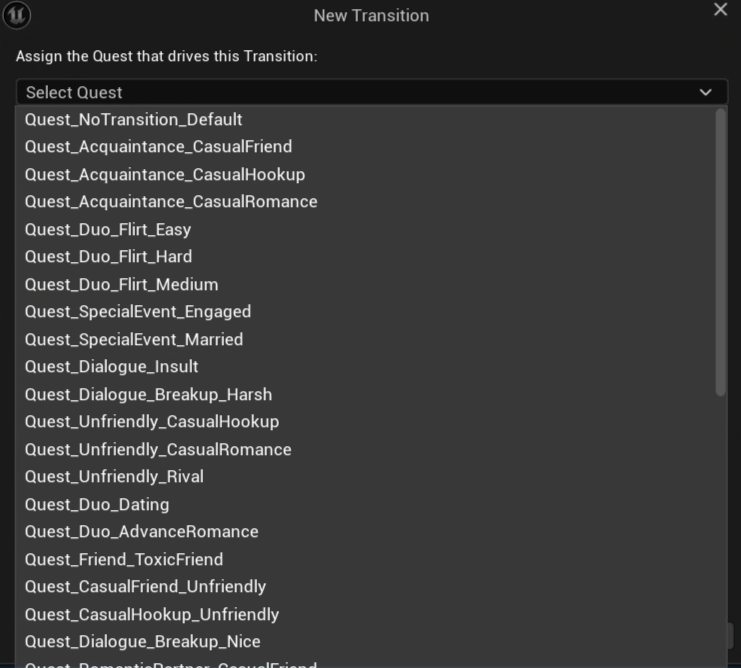
This New Transition overlay was implemented as a standalone Tool that appeared as a popup when designers used a Button in the editor header linked to a custom UI command. This separate flow allowed designers to author each new progression stage as an explicit, state-driven process rather than ad hoc Property edits. This particular Tool consists of multiple steps that owns a narrowly scoped slice of data, so designers can set up these Transitions without leaving the workflow to hunt down related assets, contexts, or other dependencies elsewhere in the editor. Separating the process into sequential steps ensured that missing or conflicting data is identified and resolved at the point of entry, before it propogates into downstream systems and affecting other parts of the system - something that was incredibly important in such a fast-paced iteration environment.
Embedded Text Editor#
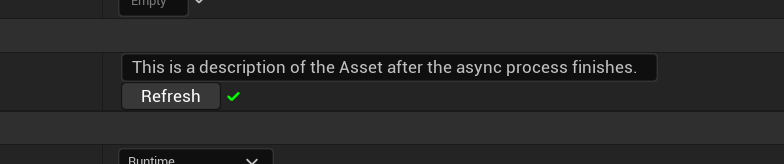
Another complication I had to solve working on this project was managing the amount of asynchronous processes that occured both at runtime and, more importantly here, during editor-time. These non-latent functions occasionally allowed designers to close the editor while processes were still running, which led to crashes or unsaved changes. I created a custom Property for all Assets that used the problematic interface that informed designers when their data was still processing, overrode the default Unreal Asset save behavior, and included a button to manually trigger the asynchronous process.
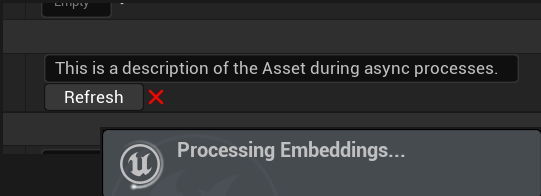
To prevent Assets from being saved in an incomplete state, I intercepted and modified the default save behavior on objects implementing the Embeddings interface so the Asset remained unsaved until all data has finished processing. When designers trigger a save, the asset is marked as dirty as non-latent processes are started and registered with an editor-only subsystem that tracks pending embedded Assets. Once all data is returned and proper delegates have been broadcasted, the Asset is marked clean, cleaned from the pending queue, and saved by the system. This prevents partial data from being serialized and written to disk and reduced the number of crashes caused during this workflow.